
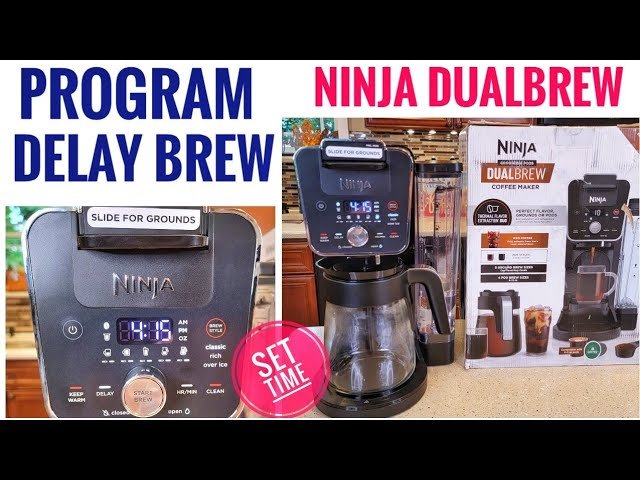
Press and hold CLOCK, use HR and MIN to set time, then press CLOCK to save.
I have worked with many kitchen gadgets and tested the Ninja DualBrew Pro myself. This guide shows exactly how to set clock on Ninja Dual Brew Pro with clear steps, useful tips, and fixes for common issues. You will get step-by-step directions, short troubleshooting checks, and real user notes so you can set the time fast and avoid mistakes. Read on to master the clock on your Ninja DualBrew Pro and make your brew schedule reliable every day.
Why setting the clock matters
Setting the clock matters for preset brews and the delay brew feature. If the clock is wrong, your scheduled brew will start at the wrong hour. I once missed my morning coffee because the machine clock was off by one hour after a power outage. Correct time keeps your routine smooth and lets the delay brew and auto-off features work as intended.

Quick step-by-step guide to set clock on Ninja Dual Brew Pro
- Press and hold the CLOCK button until the hour digits blink.
- Press HR repeatedly to set the hour. Use the AM/PM indicator if shown.
- Press MIN repeatedly to set the minutes.
- Press CLOCK once to confirm and save the time.
These four steps set the time in under a minute on most units. If buttons seem unresponsive, check power and try again after a moment.
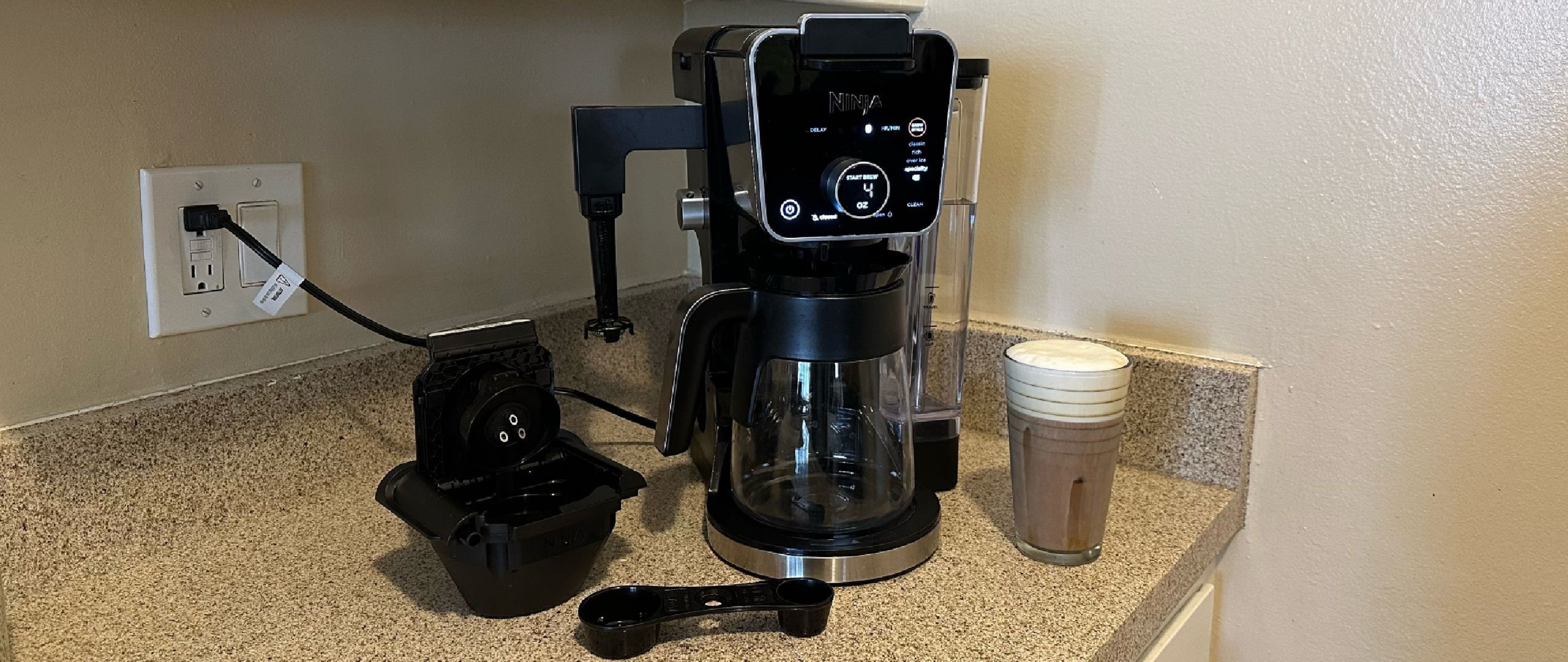
Detailed steps, tips, and notes
Press and hold CLOCK for about two seconds until digits blink. That puts the clock in set mode. Use short taps on HR to move hours. Use short taps on MIN to move minutes. Press CLOCK one more time to exit and save.
Tips from my tests:
- If the hour skips quickly, tap slowly to avoid overshooting.
- After a power cut, the clock may reset. Re-check time after outages.
- If your model shows 24-hour format, switch formats by consulting the manual or using the same buttons in sequence.
Common mistakes to avoid:
- Holding HR or MIN too long. That can jump numbers.
- Not confirming with CLOCK. Unconfirmed changes will revert.

Troubleshooting common issues when you set clock on Ninja Dual Brew Pro
If the CLOCK button does not work, try these checks:
- Ensure the unit is plugged in and the outlet works.
- Unplug for 30 seconds, then plug back in to reset the control board.
- Clean around the buttons. Stuck debris can stop presses from registering.
If time resets after power loss, the internal backup may be absent. Consider noting your preferred time to reset quickly. If the display is dark, check for display damage or contact support if other fixes fail.

Maintenance and best practices
Keep the control panel dry and free from spills. Wipe gently with a soft cloth. Avoid abrasive cleaners that can damage labels around buttons.
Best practices I use:
- Check the clock after daylight savings changes.
- Set the time right after first use and after cleaning.
- Keep a quick note of your preferred settings so resets are fast.
These simple habits save time and keep your Ninja Dual Brew Pro running on schedule.
Frequently Asked Questions of how to set clock on ninja dual brew pro
How long do I hold CLOCK to set the time?
Press and hold the CLOCK button for about two seconds until the display blinks. When the digits blink, use HR and MIN to adjust the time.
Can I switch between 12-hour and 24-hour formats?
Some Ninja Dual Brew Pro models support both formats. Check your manual or cycle CLOCK, HR, and MIN in set mode to see if a 24-hour option appears.
What if the buttons do not respond?
Unplug the brewer for 30 seconds and plug it back in. Clean the area around the buttons and try again. If the issue persists, contact support.
Will the clock keep time during a power outage?
Most units will reset after a power loss. The clock often needs to be set again once power returns. Consider noting your settings so you can restore them quickly.
How does the clock affect delay brew?
Delay brew uses the machine clock to trigger brewing at the right time. If the clock is wrong, your cup may brew at the wrong hour. Always confirm the clock before scheduling delay brew.
Conclusion
You now have clear steps and practical tips to set the clock on your Ninja Dual Brew Pro. Follow the short press-and-hold method, use HR and MIN to adjust, and confirm with CLOCK to save. Keep simple habits like checking after power outages and cleaning around buttons to avoid future troubles. Try it now, set your clock, and enjoy consistent, on-time coffee—leave a comment if you need help or want more tips.